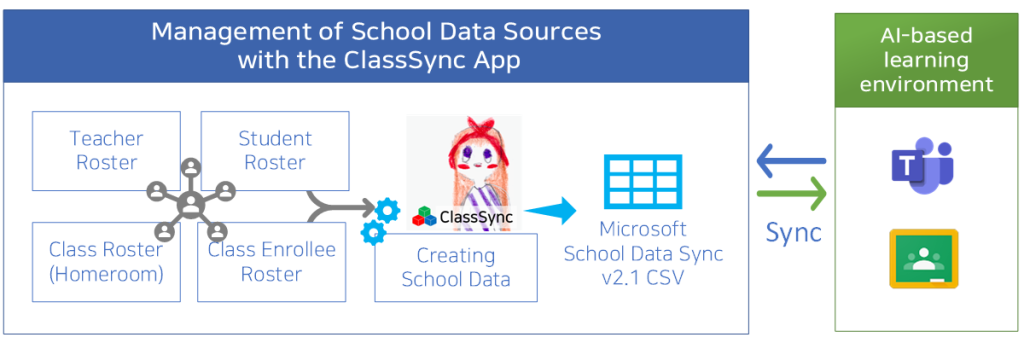
All data is stored locally on the device, ensuring maximum privacy and compliance.
We do not store your roster data on our servers. All rosters managed through the ClassSync app are processed and stored locally on your device. We take your privacy very seriously and ensure that it is never misused. Learn more
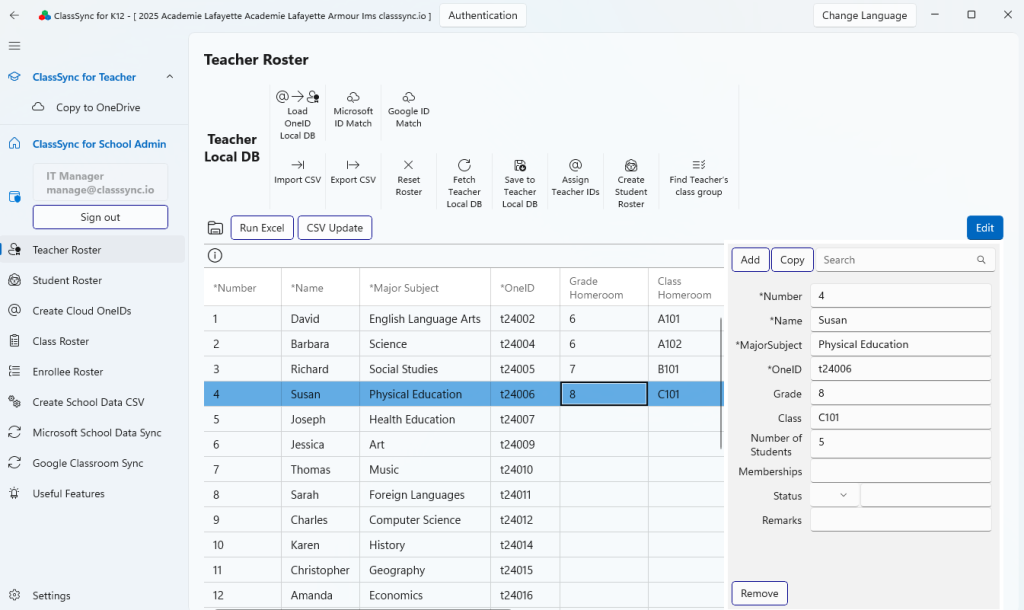
Teacher Roster
This screen provides functionality for managing the teacher roster. You can view and manage basic information such as each teacher’s name, email ID (OneID), subject, and assigned class. The email ID (OneID) is used for Google Workspace and Microsoft 365 accounts. Additionally, class information is utilized for creating class groups in both platforms and is also used when generating student rosters in bulk based on class details and student counts. By using the Google ID Match and Microsoft ID Match features, you can retrieve user IDs from the cloud (Google Workspace, Microsoft 365) that match the names in the teacher roster and display them on this screen.
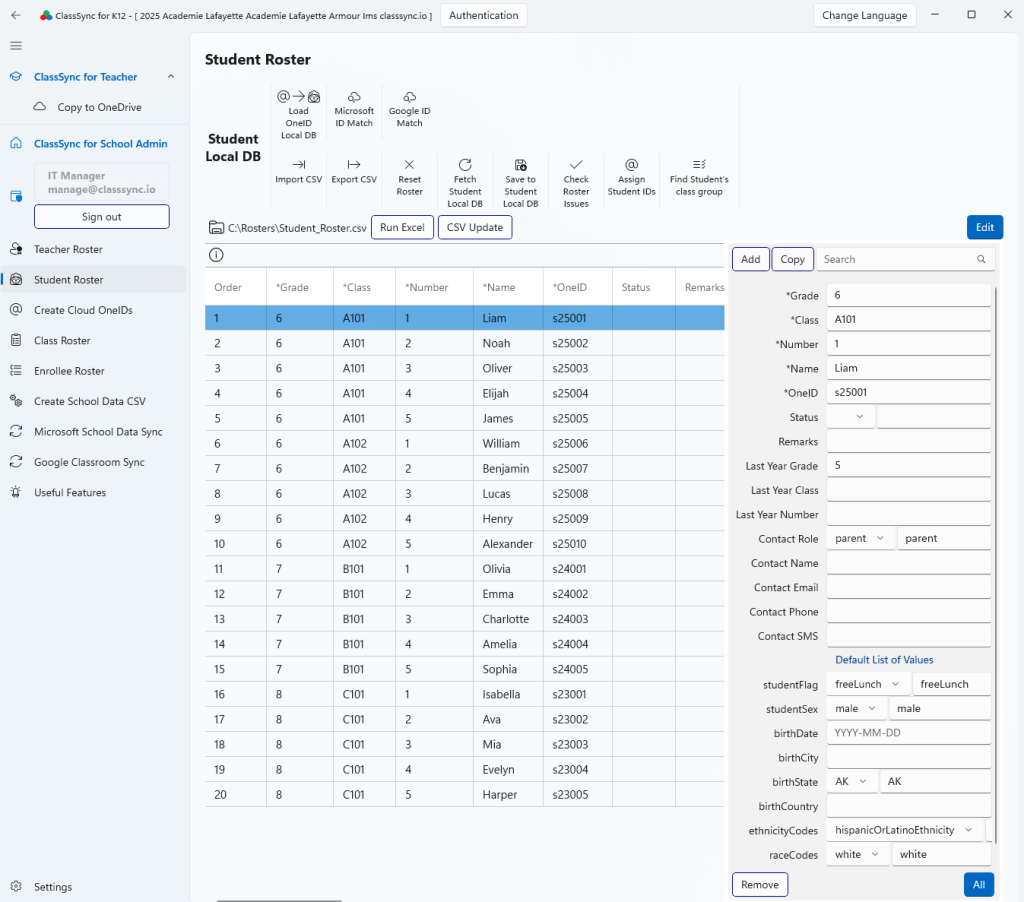
Student Roster
This screen provides functionality for managing the student roster. You can view and manage information such as student ID, name, email ID (OneID), assigned class, and grade level. It includes the default input fields for School Data Sync (see: Default list of values – School Data Sync | Microsoft Learn). The student roster serves as key data for Google Workspace and Microsoft 365 accounts, class group creation, and Classroom/Teams synchronization. Additionally, by using the Google ID Match and Microsoft ID Match features, you can retrieve user IDs from the cloud (Google Workspace, Microsoft 365) that match the names in the student roster and display them on this screen.
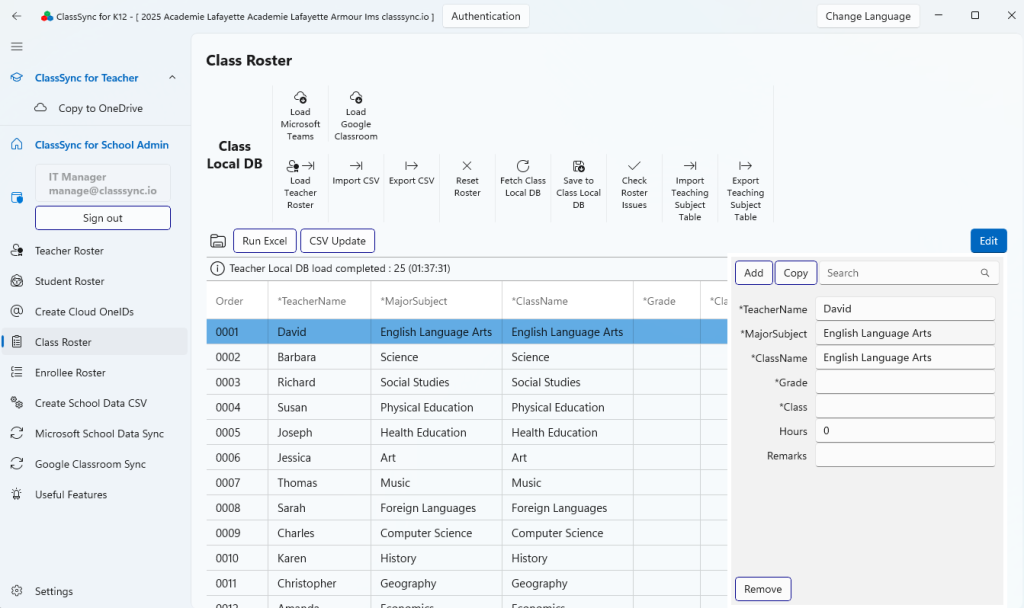
Class Roster : Manage rosters based on established classes and courses
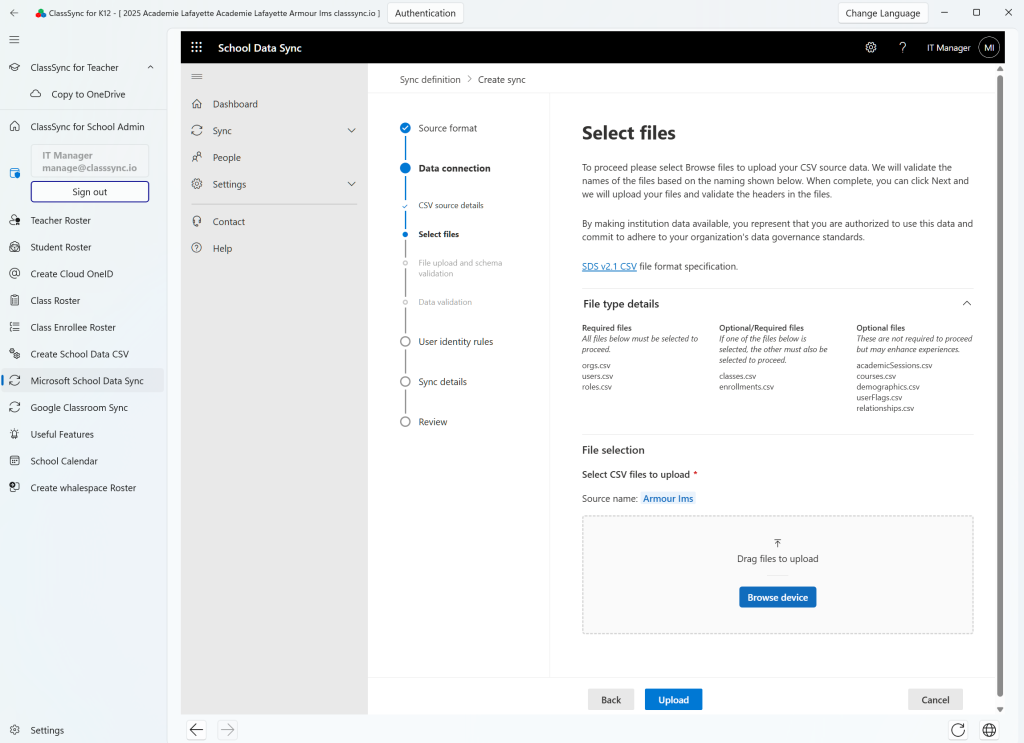
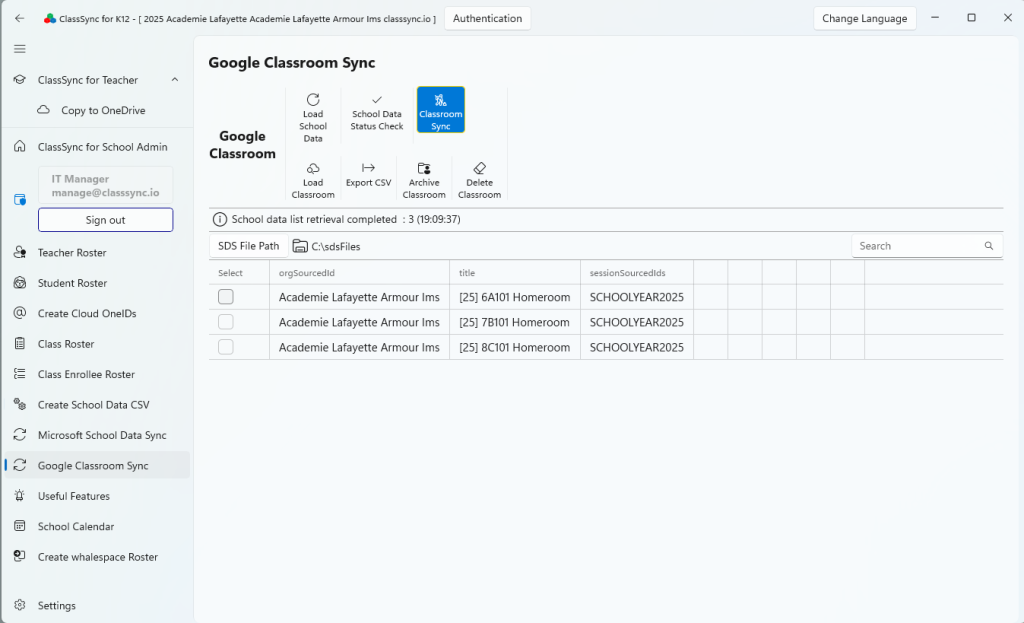
This screen manages rosters based on the established classes and courses, with class information mapped from the teacher roster. It is utilized for subject-level data mapping when generating Microsoft SDS CSV files. Additionally, the roster is used for synchronizing Microsoft Teams class teams and Google Classroom classes.
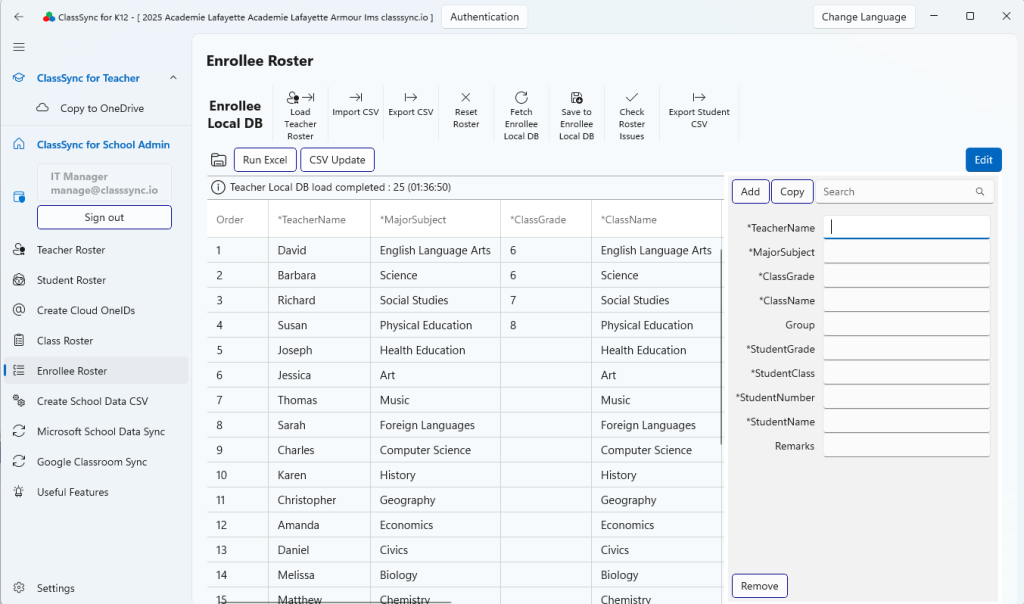
Enrollee Roster : Manage rosters based on established courses and enrolled students
This screen manages rosters based on the established courses and the students enrolled in them. The roster is utilized for subject-level data mapping when generating Microsoft SDS CSV files and is also used for synchronizing Microsoft Teams class teams and Google Classroom classes.
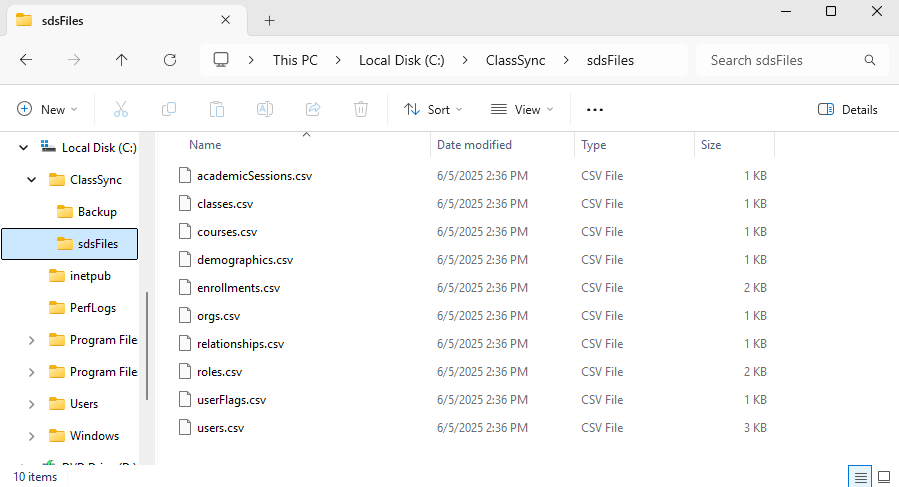
SDS V2.1 CSV File Format (Save to the folder selected by the user)
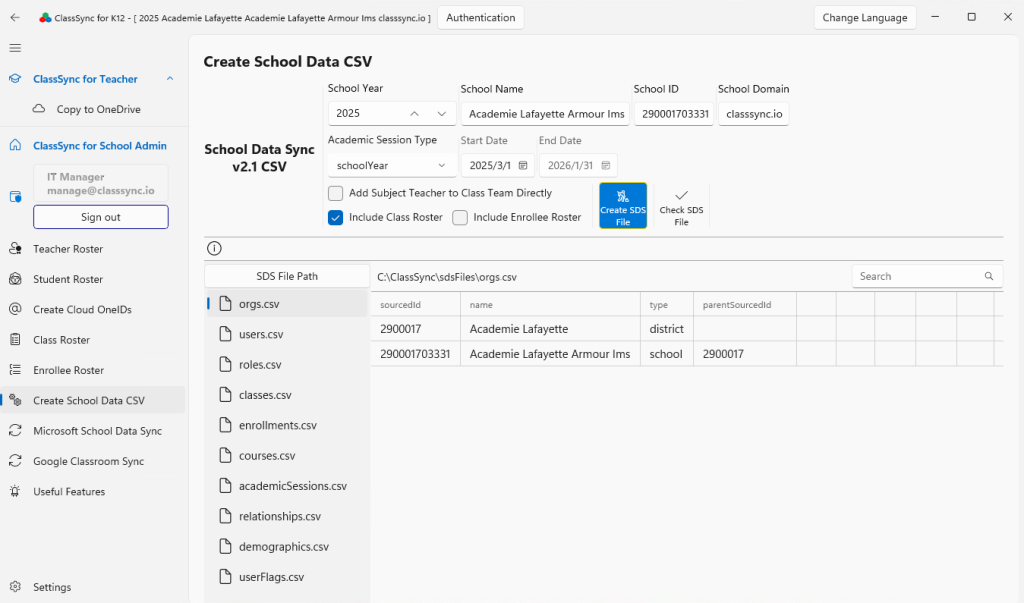
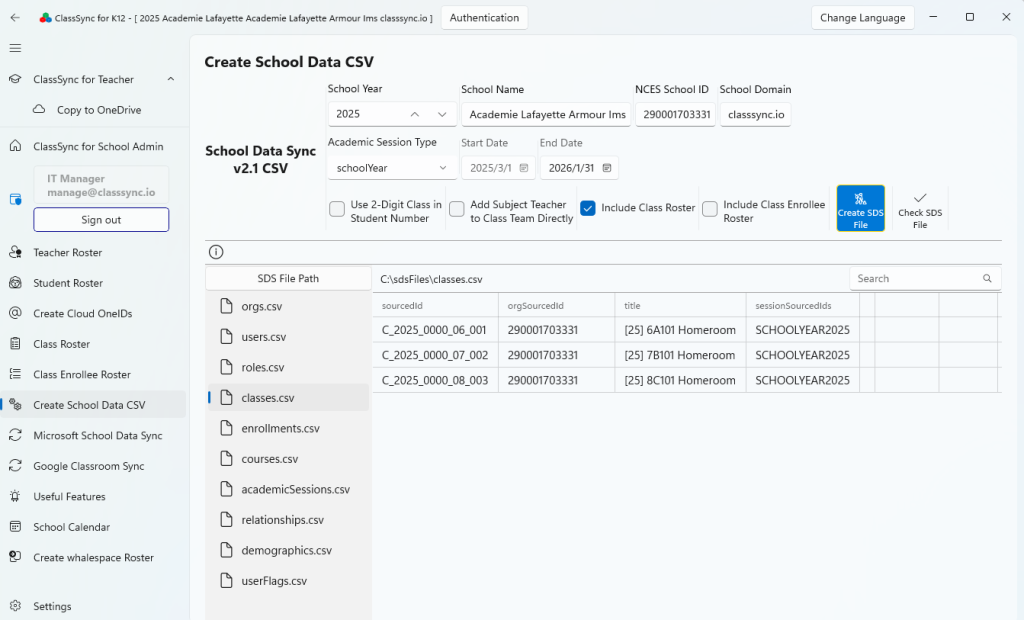
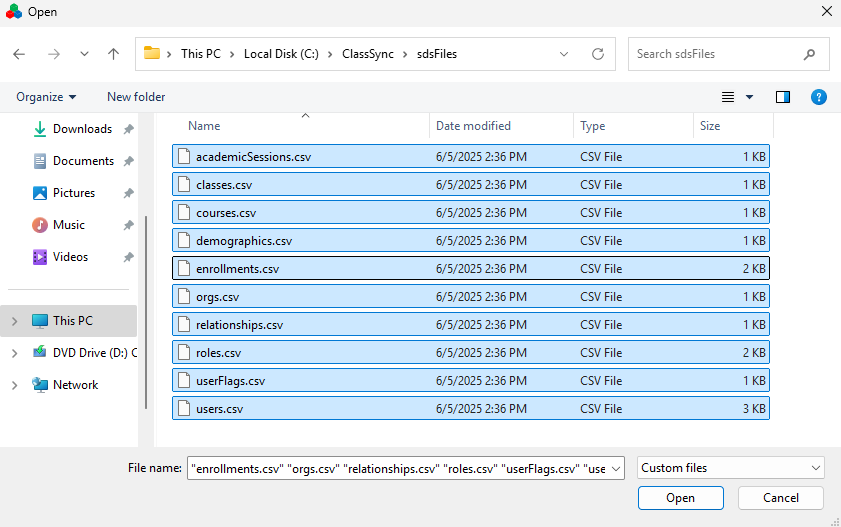
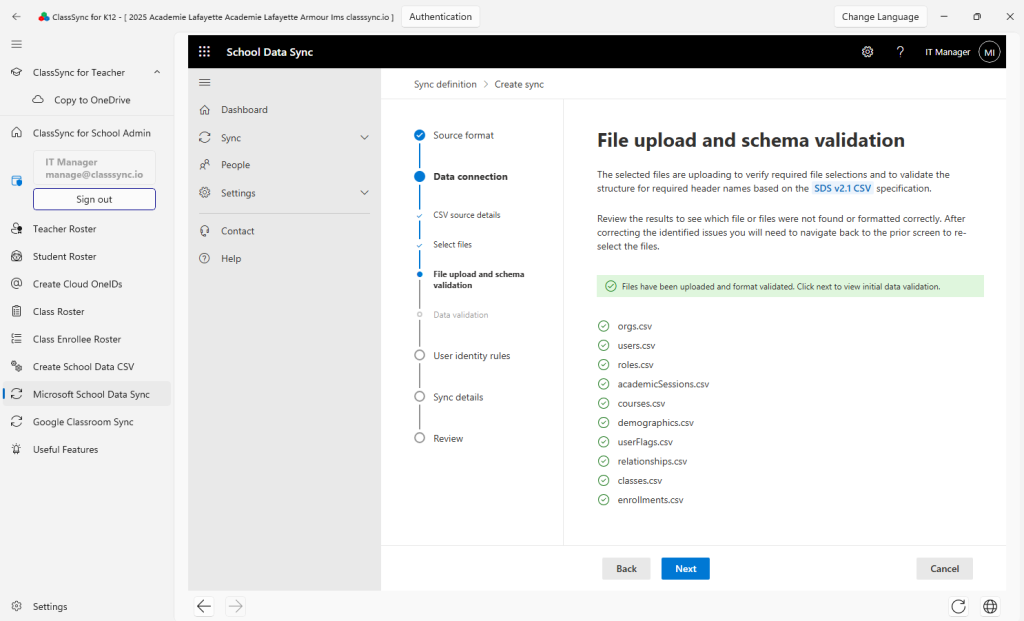
This screen provides functionality for generating CSV files in the Microsoft School Data Sync (SDS) v2.1 format. In the upper section, you can configure the school year, school name, school ID, domain, and academic session dates (start and end). There are options to add subject teachers directly to Teams class teams and to include class rosters or enrollee rosters. After completing the settings, clicking the Create SDS Files button generates CSV files compliant with SDS standards. The lower section displays the list of generated files, which include:orgs.csv, users.csv, roles.csv, classes.csv, enrollments.csv, courses.csv, academicSessions.csv , relationships.csv, demographics.csv, and userflags.csv. A search bar on the right allows you to quickly locate specific files.